Convert MOV to MP4 online with MyMirrorClub directly inside your browser. Your source video stays on your computer, with no upload to MyMirrorClub and no server-side conversion job.
Apple devices, cameras and editing programs often create QuickTime MOV files. MOV is a flexible format, but it is not always the easiest file to use on websites, social platforms, Windows computers or Android devices. MyMirrorClub now includes a private member tool that creates a browser-friendly MP4 while keeping the conversion on your own device.
Open the MOV to MP4 Video Converter or continue below to see how the modes, privacy protection and transparency checks work.
Why convert a MOV file to MP4?
MOV files are common on Mac computers, iPhones and professional editing systems. MP4 is often easier to share because it is widely supported by browsers, websites, mobile devices and social platforms.
- Convert a Mac QuickTime screen recording before uploading it to a website.
- Prepare an iPhone, camera or editing-program MOV for broader playback.
- Create a more compatible file for Windows and Android users.
- Choose a high-quality result or a smaller file for easier sharing.
- Open the converted MP4 in the MyMirrorClub editor when your workflow continues there.
A MOV to MP4 converter that does not upload your video
Many online video converters require the entire source video to be sent to a remote server. That can mean waiting for an upload before conversion even begins, then waiting again to download the result.
MyMirrorClub follows a different workflow. The conversion engine loads into the browser, reads the MOV locally and creates the MP4 locally. The source video and converted result remain in browser memory until you download the MP4, clear the page or close the browser tab.
The converter uses a pinned, self-hosted browser build of the open-source FFmpeg.wasm engine. The engine files load from MyMirrorClub, but the selected video is not sent with that request.
Choose from three MP4 conversion modes
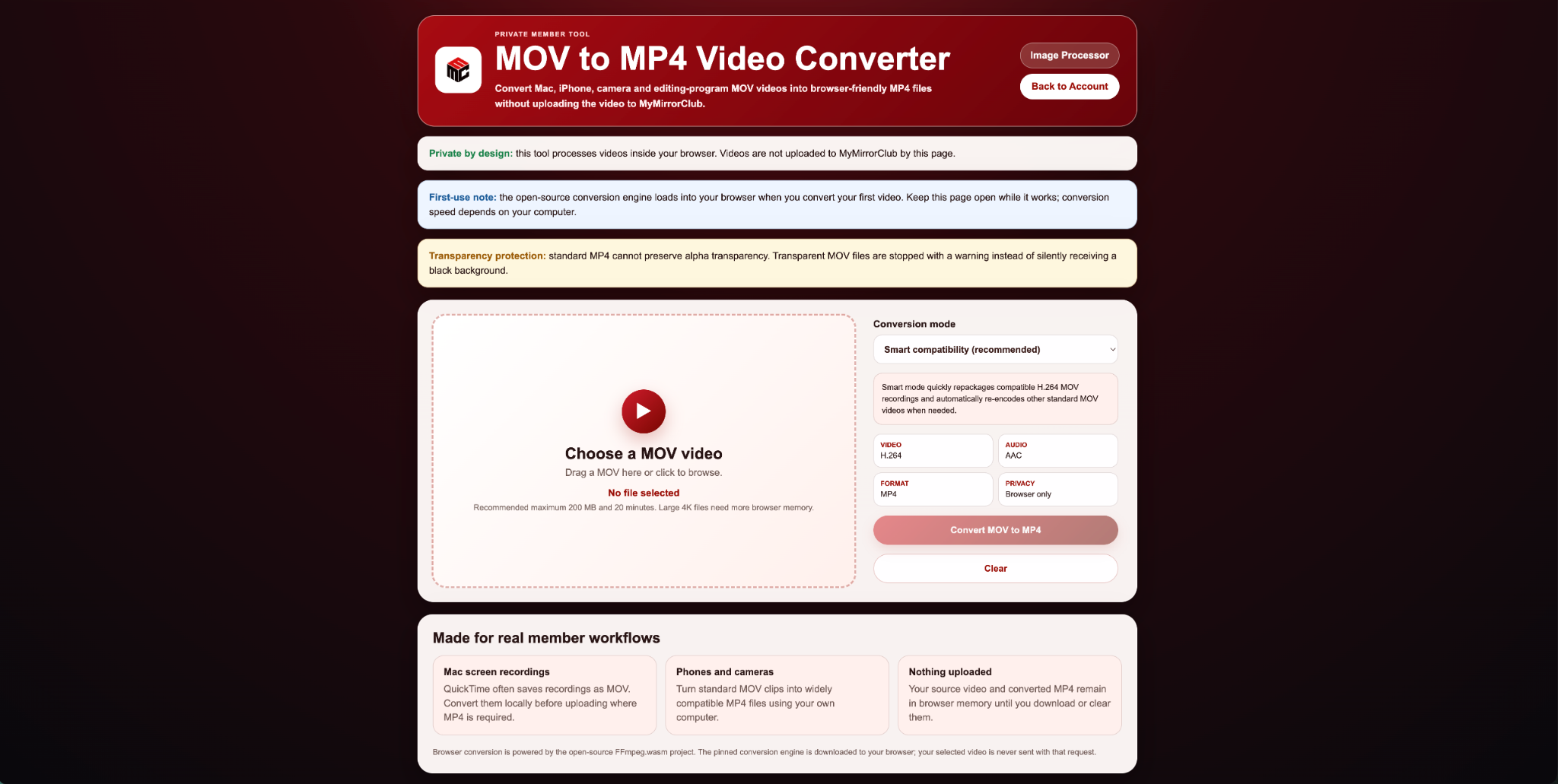
Smart Compatibility (recommended)
Smart Compatibility is the best first choice for most users. When a MOV already contains compatible H.264 video and suitable audio, the converter can quickly repackage those streams into an MP4 without unnecessarily re-encoding the picture. When the source is not MP4-compatible, Smart mode automatically switches to a compatible H.264 MP4 conversion.
This mode is especially useful for Mac screen recordings and other MOV files that already use a broadly compatible video format.
High Quality MP4
High Quality MP4 performs a full conversion for broad compatibility while prioritizing visual quality. Use it when Smart mode needs to re-encode the source or when you want a fresh H.264 MP4 result for websites, client delivery or editing workflows.
Smaller MP4
Smaller MP4 reduces the output size more aggressively. It is useful when the final video needs to be easier to email, transfer or upload and a smaller file matters more than preserving the highest possible quality.
Built-in transparency protection
Standard MP4 does not preserve alpha transparency. A transparent MOV animation converted blindly to MP4 can end up with an unwanted solid or black background.
The MyMirrorClub converter checks the video stream before conversion. When it detects an alpha-capable transparent MOV, it stops and displays a warning instead of silently producing the wrong result.
Transparent MOV files used for photo booth animations should remain in the existing MyMirrorClub transparent MOV publishing workflow. The converter is intended for regular, non-transparent MOV videos such as screen recordings, phone clips, camera footage and standard editing exports.
How to convert MOV to MP4 in MyMirrorClub
- Sign in with an active MyMirrorClub member, VIP or administrator account.
- Open the MOV to MP4 Video Converter.
- Drag a MOV into the selection area or click to browse for the file.
- Select Smart Compatibility, High Quality MP4 or Smaller MP4.
- Choose Convert MOV to MP4.
- Keep the browser tab open while the local engine works.
- Review the completed file information and choose Download MP4.
- Use Open Editor to continue in MyMirrorClub, or choose Convert Another.
Real conversion test: a Mac QuickTime screen recording
The completed converter shown above was tested with a real macOS QuickTime screen recording:
- QuickTime MOV source
- H.264 Main video
- yuv420p pixel format
- 4096 × 2064 resolution
- Approximately three seconds long
- No audio and no alpha transparency
- Approximately 567.5 KB source size
Smart Compatibility created a downloadable MP4 at the same 4096 × 2064 resolution, with an output size of approximately 567.2 KB. The conversion stayed in the browser and the finished file was downloaded locally.
Progress, cancel, clear and convert another
The converter provides visible status information while the browser engine loads, examines the source file and creates the MP4. A progress display helps show what stage is running, and the conversion can be cancelled when needed.
After completion, the page displays the original and converted file information together. You can download the MP4, clear the in-browser files, convert another MOV or open the MyMirrorClub editor.
Browser memory and first-use performance
The conversion engine loads into the browser the first time it is needed. Keep the page open while it works. Conversion speed depends on the computer, browser, source codec, video length, resolution and selected mode.
The page recommends videos up to approximately 200 MB and 20 minutes for a practical browser workflow. Large 4K files can require considerably more browser memory. For a very large source, close unnecessary tabs and use a modern desktop browser with enough available memory.
Useful for more than photo booth videos
The converter was added for real member workflows, including:
- Mac screen recordings saved as MOV
- iPhone and camera videos
- Standard exports from editing software
- Client preview clips
- Videos that need broader website and browser compatibility
- Regular MOV assets that will be brought into the MyMirrorClub editor
MyMirrorClub also provides an in-browser Image Processor, a growing library of photo booth templates, and tools for creating photo booth animations.
FAQ: Can I convert MOV to MP4 without uploading my video?
Yes. The MyMirrorClub converter processes the selected MOV inside your browser. The source video and converted MP4 are not uploaded to MyMirrorClub by this converter page.
FAQ: Can MP4 preserve a transparent video background?
No. Standard MP4 does not support alpha transparency. MyMirrorClub checks for transparent MOV video and stops the conversion with a warning so the file does not silently receive an unwanted background.
FAQ: Can the converter keep the original 4K resolution?
It can preserve the source dimensions when the browser has enough memory and the conversion mode does not require a size change. The confirmed Smart Compatibility test preserved a 4096 × 2064 QuickTime recording.
FAQ: Which conversion mode should I choose?
Start with Smart Compatibility. Choose High Quality MP4 when you want a full high-quality re-encode, or Smaller MP4 when reducing the file size is the main goal.
FAQ: Can I convert a Mac screen recording to MP4?
Yes. macOS QuickTime screen recordings are one of the main workflows supported by the converter. A real QuickTime MOV screen recording was successfully converted and downloaded as MP4 during live testing.
FAQ: Who can use the MyMirrorClub video converter?
The converter is a private member tool for active MyMirrorClub members, VIP users and administrators. Visitors can create an account and review the available membership options before opening the converter.
Convert your next MOV privately in the browser
Open the member converter, choose the best mode and download the finished MP4 directly to your computer.
MyMirrorClub is FREE TO TRY. New accounts receive one free publishing credit on signup. The MOV to MP4 converter itself requires an active member, VIP or administrator account.