A photo booth event can be fully designed and approved, but one forgotten cable, charger, printer supply or venue detail can still turn event day into a scramble. MyMirrorClub Event Preflight gives photo booth owners a practical checklist for confirming the event, packing equipment, testing software and making sure the complete setup is ready before leaving.
Event Preflight is a separate MyMirrorClub feature, so it works whether you use Production Hub or not. For owners who do use MyMirrorClub Production Hub, a preflight can also be linked to the same Event Project so the two workflows stay synchronized.
A photo booth checklist built around the real event-day workflow
Event Preflight starts with a reusable checklist covering the things booth owners commonly need to confirm before departure. Instead of one long generic list, the checklist is grouped into practical sections for Event & Client, Booth & Hardware, Computer & Software, Printer & Supplies, Power & Cables, Network & Gallery, Presentation & Extras, and Backup & Final Check.
The default checklist contains 38 items, including the client and venue details, booth hardware, camera and lighting, computer and event project, printer supplies, extension cords, adapters, hotspot, backdrop, props, signage, backup batteries and the final physical load-out check.
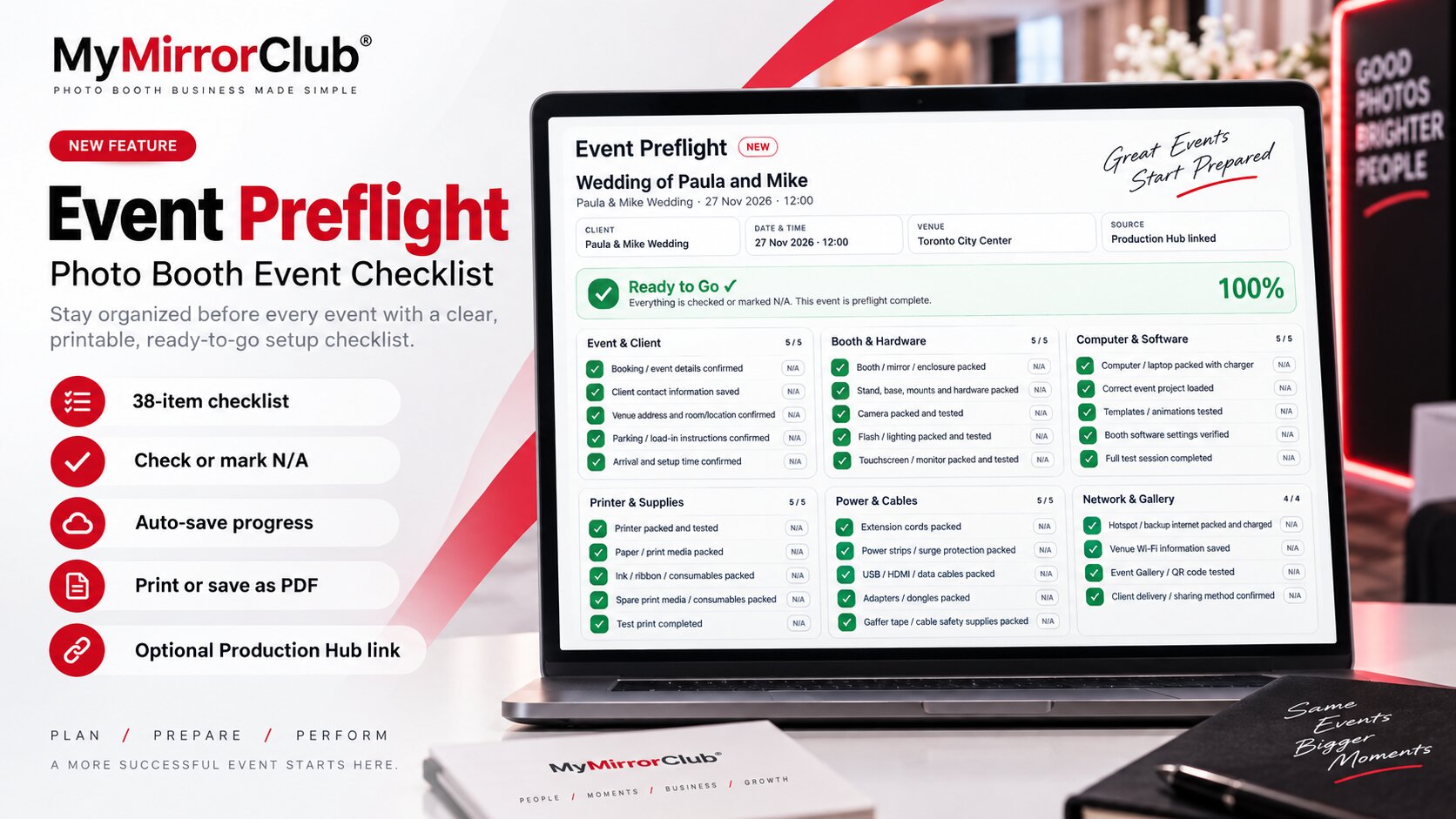
Check it, mark it N/A, and keep moving
Not every photo booth company uses the same setup. Some events use a printer while others are digital-only. Some use a backdrop, props, venue Wi-Fi or an Event Gallery; others do not.
That is why every preflight item can be either checked or marked N/A. An item marked N/A is treated as intentionally not required for that event, so it does not prevent the checklist from reaching Ready to Go.
This makes one checklist useful across weddings, corporate events, birthdays, school events, trade shows, mirror booths, digital booths and other setups without forcing irrelevant equipment into every job.
Changes save automatically
Event Preflight is designed to be used while you are actually preparing equipment. Check an item when it is packed or tested, and the checklist saves automatically in the background.
The Event Preflight card updates live with the number of completed items, progress percentage and progress bar. You do not need to leave the page or reopen the checklist to see the latest status.
Add custom items for a specific event
Every event has its own details. A client may request a red carpet, a special branded table cover, an extra monitor, a second printer, a particular prop set or a venue-specific cable requirement.
Event Preflight lets you add custom checklist items to the appropriate section. Those custom items become part of that event's progress calculation, and they can be removed later if they are no longer needed.
Ready to Go means nothing is left pending
As long as one required item is still pending, the Event Preflight remains Preflight in Progress. Once every item is either checked or marked N/A, the checklist changes to Ready to Go ✓ and the progress reaches 100%.
The green Ready to Go state gives the booth owner one fast visual answer before departure: the event checklist is complete.
Create a standalone preflight or link it to Production Hub
When creating a new Event Preflight, you can build it as a standalone checklist and enter the event information manually. You can also select an existing Production Hub Event Project. When linked, MyMirrorClub can prefill the event name, date, time, client and venue information from the project.
The two features remain separate. Production Hub handles client design requests, editable working copies, approvals and final files. Event Preflight handles the physical and operational preparation before the event.
When a linked Event Preflight reaches 100% Ready to Go, Production Hub automatically marks Equipment / event preflight checked ✓. If something is later unchecked and the preflight drops below 100%, that Production Hub step clears automatically too.
Read the complete Production Hub workflow →
Event Gallery and other MyMirrorClub tools remain optional
MyMirrorClub includes separate tools such as Event Gallery, Virtual Photo Booth, Video Guest Book, Audio Guest Book, Live Photo Mosaic and more. Event Preflight does not require you to use those features.
For example, the checklist includes an Event Gallery / QR code tested item because many booth owners may want to verify it before leaving. If that event does not use Event Gallery, simply mark that item N/A. The same idea applies to printer-specific, backdrop, prop, Wi-Fi and other setup-dependent items.
Print the checklist or save it as a PDF
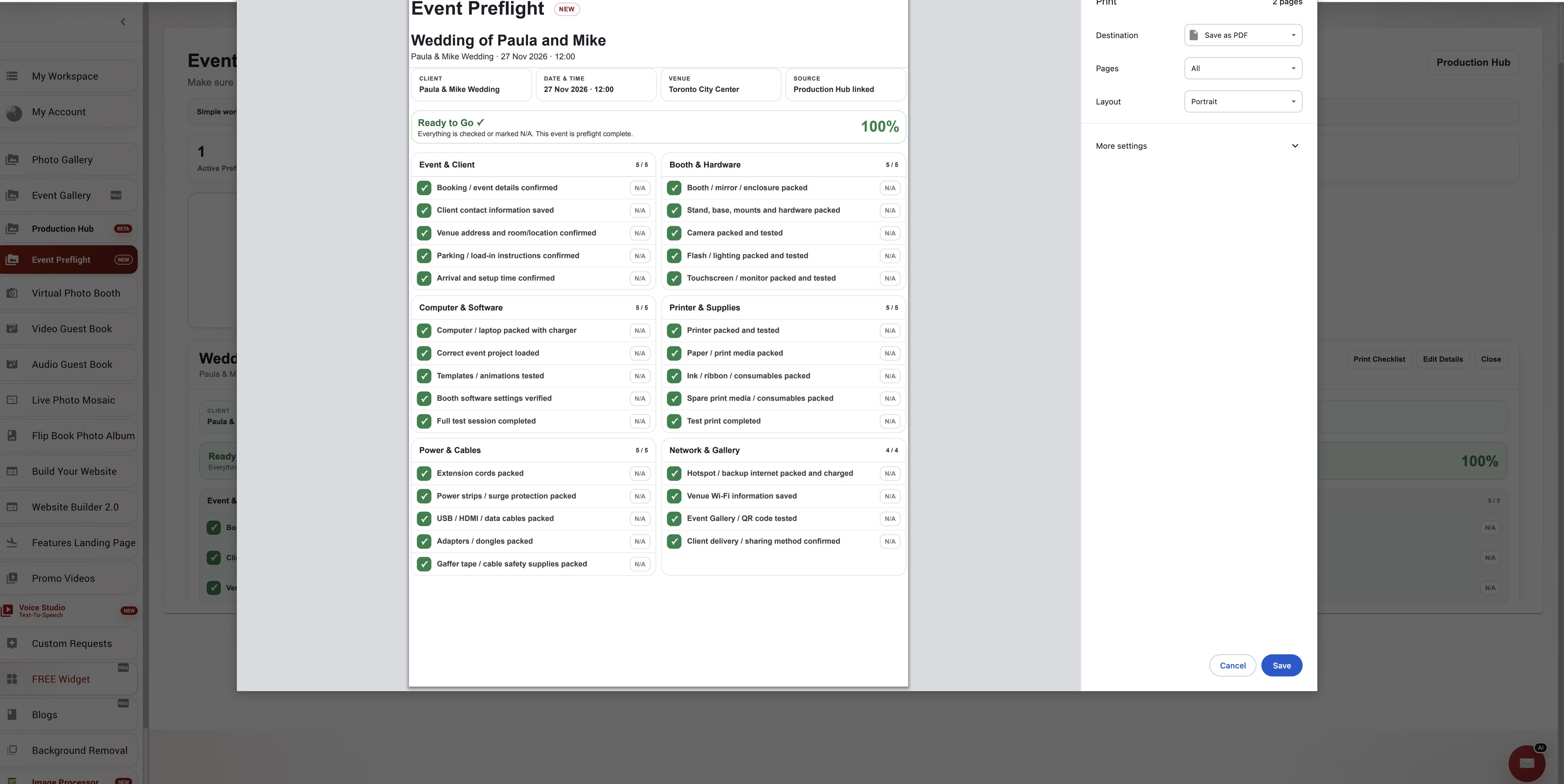
Some booth owners prefer a physical checklist in the vehicle, equipment case or setup folder. Event Preflight includes a dedicated Print Checklist view with print-safe margins and a compact two-column layout.
From the browser print dialog, you can print the checklist on paper or choose Save as PDF to keep a copy with the event records.
What should a photo booth preflight check before leaving?
A useful preflight is more than a packing list. It should confirm the client and venue information, verify that the correct event project and designs are loaded, test the booth and camera, confirm printer supplies when applicable, check power and data cables, prepare internet or sharing options, pack presentation items and make sure backups are available.
The last check should be simple but important: is all required equipment physically loaded and ready for departure? Event Preflight keeps those checks together instead of relying on memory right before an event.
One less thing to remember on event day
Photo booth owners already manage clients, designs, equipment, software, travel, setup and event timing. Event Preflight is designed to remove one source of uncertainty: wondering whether something important was forgotten.
MyMirrorClub members can open Event Preflight from My Account. Create a checklist for an upcoming event, mark items as you prepare them, add anything unique to the job, and leave only when the event shows Ready to Go ✓.
FAQ: Do I need to use Production Hub to use Event Preflight?
No. Event Preflight works completely on its own. Linking it to a Production Hub Event Project is optional.
FAQ: What if I do not use a printer, Event Gallery, backdrop or props?
Mark those checklist items N/A. Items marked N/A are treated as intentionally not required and do not block Ready to Go.
FAQ: Does Event Preflight save automatically?
Yes. Checklist changes save automatically, and the event card updates live as items are checked, unchecked, marked N/A, added or removed.
FAQ: Can I add my own photo booth equipment checklist items?
Yes. You can add event-specific custom items to the checklist, such as special props, branded signage, a red carpet, additional hardware or venue-specific equipment.
FAQ: What happens when a linked Event Preflight reaches 100%?
It changes to Ready to Go ✓. If it is linked to Production Hub, the Hub automatically marks the equipment/event preflight step complete. Dropping below 100% automatically clears that linked step again.