MyMirrorClub continues to grow with practical improvements that help creators work faster and stay organized. The newest editor enhancement lets you rename any layer, making complex photo booth templates and animations much easier to understand.
Instead of seeing several layers identified only as Image, you can give them clear names such as Top Flower, Bottom Border, Transparent Photo Box, Bride, Groom, Heart, or Touch to Start.
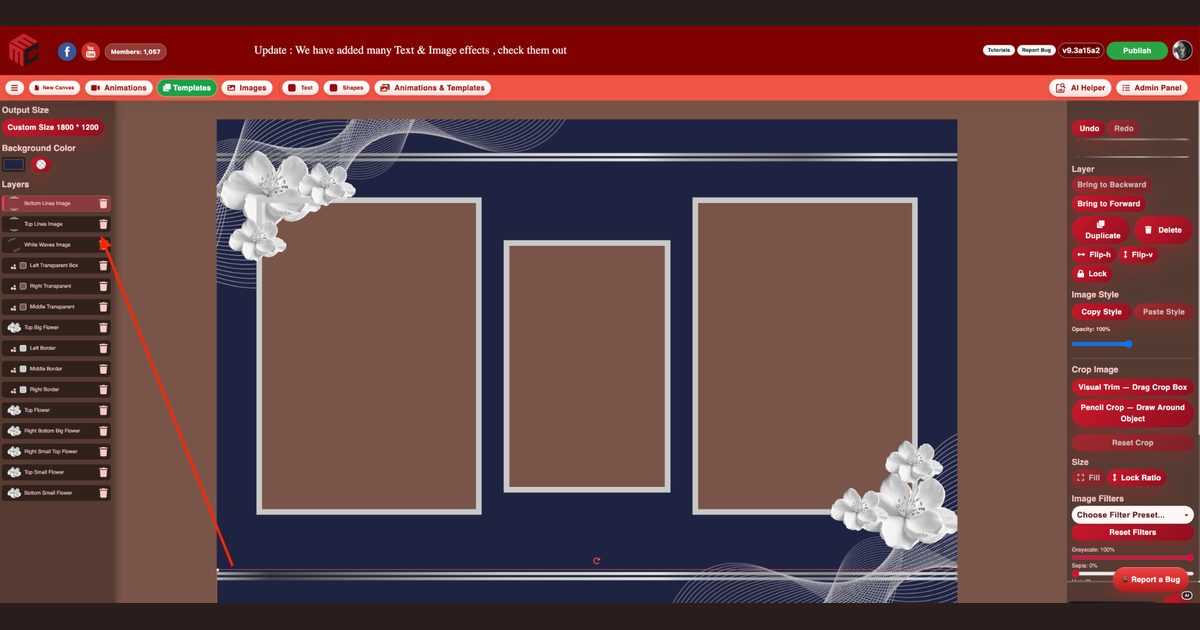
Double-click any layer to rename it
Renaming is quick:
- Find the layer in the Layers panel.
- Double-click the layer name.
- Type the new name.
- Press Enter to save it.
You can also use the small rename control beside the layer when available. Press Escape to cancel without changing the name.
Name layers by purpose or position
The screenshot above shows why this matters. A finished template may contain several similar decorative elements. Clear names make it obvious which layer controls each part of the design.
- Top Big Flower
- Right Small Top Flower
- Bottom Small Flower
- White Waves Image
- Left Transparent Box
- Middle Border
- Bottom Lines Image
You can name layers by location, purpose, client, event, or animation role. The best name is simply the one that helps you recognize the layer immediately.
Rename images, text, shapes, video and audio
Custom names are available across the editor, including:
- Images and decorative PNGs
- Pencil Crop objects
- Visual Trim layers
- Text layers
- Shapes and Border Frames
- Video layers
- Audio layers
This is especially useful after Pencil Crop. Two layers may begin from the same grouped image, but after isolating each person you can rename them Bride and Groom instead of leaving both as Pencil Crop.
Custom names stay with the project
Your custom layer names save with the project and return when it is reopened. This makes it easier to continue editing later without having to rediscover which image controls each part of the design.
Renaming also works with Undo and Redo. If you remove a custom name, the editor returns to its automatic label, such as Pencil Crop, Trimmed Image, Image, Video, Audio, the text content, or the shape type.
Why a small organization feature makes a big difference
A simple template may contain only a few layers. A professional design can contain many flowers, borders, frames, transparent boxes, text prompts, cropped objects and animation elements. Without clear names, creators may spend unnecessary time clicking through layers to find the correct one.
Custom names reduce that searching. They also make it easier to:
- Move or resize the correct object
- Adjust filters and opacity without selecting the wrong layer
- Manage animation effects and Timeline timing
- Work with several similar flowers, borders or photo boxes
- Return to an older project and understand it immediately
Part of a faster MyMirrorClub workflow
Manual layer naming joins several recent workflow improvements inside the MyMirrorClub editor:
- Persistent Layers panel
- Recognizable image thumbnails
- Live text names and font previews
- Meaningful shape names and color swatches
- Pencil Crop and Visual Trim
- Fit Cropped Layer to Visible Content
- Copy and Paste Image Style
- Image opacity
- Searchable Templates, Images and Animations
- Smart guides and multiple-layer selection
Each improvement is designed to reduce unnecessary steps and make advanced projects feel easier to manage.
MyMirrorClub is becoming a complete creative workspace
MyMirrorClub started as an online editor for photo booth templates and animations, but the workflow continues to expand. Creators can now organize layers, isolate objects, add effects, control timing, search large asset libraries, customize text and publish finished designs from one workspace.
More improvements are planned as the platform continues to grow.
FREE TO TRY with one free publishing credit
MyMirrorClub is free to try. New members receive one free publishing credit after signup, giving you a real opportunity to explore the editor, customize templates, build animations and test the newest workflow tools.
Create your free MyMirrorClub account, open the online editor, browse photo booth templates, explore photo booth animations, or see how Pencil Crop turns grouped artwork into separate animated layers.
FAQ: How do I rename a layer?
Double-click the layer name in the Layers panel, type the new name, and press Enter.
FAQ: Can I cancel while renaming?
Yes. Press Escape to cancel the rename without saving the new text.
FAQ: Which layers can be renamed?
You can rename image, Pencil Crop, Visual Trim, text, shape, video and audio layers.
FAQ: Do custom names save with my project?
Yes. Custom names return when the project is saved and reopened.
FAQ: Can I restore the automatic layer name?
Yes. Clear the custom name and save it. The editor will return to the appropriate automatic label.