
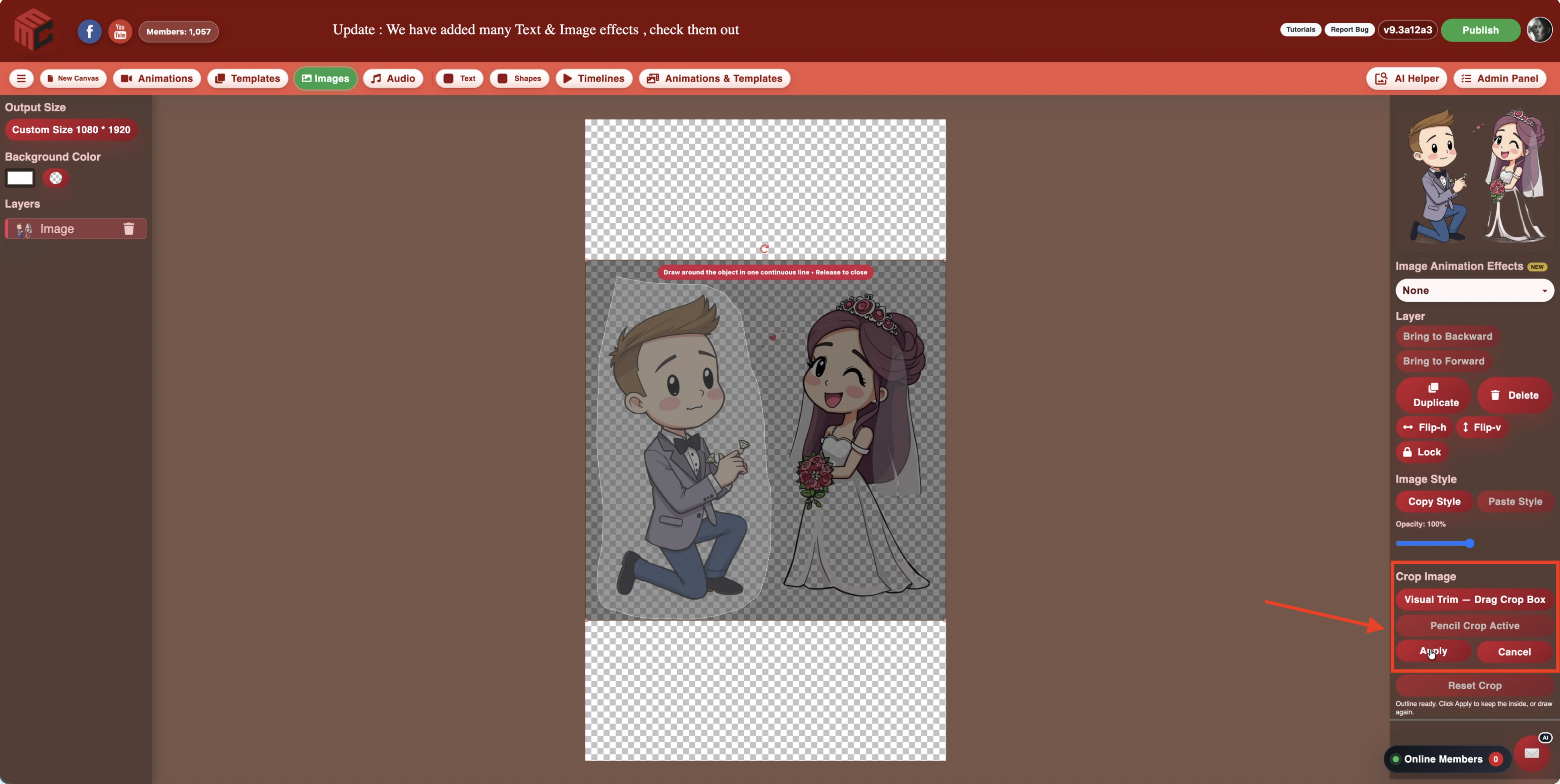
A grouped PNG can contain several useful objects, but traditional rectangular cropping cannot always separate the one you need. MyMirrorClub Pencil Crop changes that. Draw around a bride, groom, bird, flower, sticker, icon, or decoration and keep only that object with transparency around it.
The result remains a normal editable image layer. You can resize it, reposition it, apply filters, change opacity, add an animation effect, control its appearance with Timeline, and publish the finished project without leaving the MyMirrorClub editor.
Watch the complete Pencil Crop workflow in about three minutes
This real editor demonstration begins with a new canvas and finishes with a timed wedding animation. It shows the complete process instead of only demonstrating one button.
What the video demonstrates
- Create a New Canvas. Start an animation project with the output dimensions and duration needed for the design.
- Load the first grouped image. Add artwork that contains more than one person or object.
- Use Pencil Crop on the first image. Draw a closed freehand outline around the person you want to keep and apply the mask.
- Load and resize the second copy. Add the source again, size it for easier editing, and isolate the second person.
- Add an effect to both isolated layers. Each person becomes an independent animated element.
- Adjust their entrance timing. Timeline controls when each cropped object appears.
- Search Images for a heart. The searchable image library makes it easy to add another decorative element without leaving the project.
- Add Heartbeat to the heart. The heart becomes part of the animated story rather than a static decoration.
- Add Touch to Start text and an effect. The final project includes an interactive photo booth prompt.
- Change the background color. The complete design is styled and previewed as one finished animation.
Why Pencil Crop is different from rectangular cropping
Visual Trim is excellent when the unwanted content can be removed with straight top, bottom, left, or right edges. It is fast for trimming transparent padding, cutting away an unwanted bottom piece, or keeping one item that sits alone inside a rectangular area.
Pencil Crop is designed for irregular shapes and objects that sit close together. A bride and groom, four birds, a flower cluster, or a sticker sheet may not fit inside a clean rectangle. Pencil Crop lets you trace the object itself, close the outline, and make everything outside the selection transparent.
One grouped image becomes several independent layers
The wedding artwork in the demonstration begins as one grouped image. The same source is loaded twice:
- One copy is cropped around the groom.
- The other copy is cropped around the bride.
After applying Pencil Crop, the two people can be positioned separately and given different entrance directions, effects, sizes, timing, and layer order. This is especially useful when purchased or downloaded artwork combines several elements into one transparent PNG.
The isolated object stays editable
Pencil Crop does not turn the result into a locked final picture. The retained object continues to work with the editor’s image tools, including:
- Resize and reposition
- Horizontal and vertical flips
- Image opacity
- Grayscale, sepia, hue, saturation, tint, blur, brightness, and contrast
- Filter presets and Reset Filters
- Copy and Paste Image Style
- Image animation effects
- Timeline timing
- Layer ordering
Use Timeline to build the scene
Once the bride and groom are separate layers, Timeline controls when each element enters and how long it remains visible. The video demonstrates how a simple grouped illustration can become a short animated sequence instead of appearing all at once.
This workflow is valuable for Touch to Start screens, wedding booth animations, birthday graphics, holiday scenes, promotional displays, and any project where individual decorative elements should arrive at different times.
Search, add, and animate supporting graphics
The demonstration also uses the searchable Images library to find a heart. After the heart is added, the Heartbeat effect gives it motion that matches the wedding theme.
This shows how Pencil Crop works as part of a larger workflow. The isolated people, searched decorative image, text prompt, background color, effects, Timeline, and player all work together inside the same editor.
Undo, Reset Crop, save, and publish
Applying Pencil Crop creates a meaningful edit that can be undone. Reset Crop restores the full source image when you want to draw a different selection. Crop information saves with the project, and the transparent masked result is preserved in editor preview and published output.
For the cleanest result, draw slightly outside the object’s visible edge rather than cutting directly through anti-aliased outlines, hair, veils, leaves, or soft shadows. A steady closed path usually produces the best transparent edge.
Useful Pencil Crop ideas
- Keep one bird from a group of birds.
- Separate a bride and groom from one wedding illustration.
- Keep one flower, ribbon, icon, or sticker from a grouped PNG.
- Extract one product or character from a collection.
- Animate individual objects that originally arrived as one image.
- Create reusable transparent elements from artwork already in your library.
A complete creative workflow inside MyMirrorClub
Pencil Crop moves MyMirrorClub beyond basic template customization. A creator can now bring in grouped artwork, isolate the exact object needed, add effects, control timing, search for supporting graphics, add text, change the background, preview the result, and publish—all in one workflow.
The three-minute demonstration shows how quickly those tools can turn a single source image into a complete animated photo booth screen.
FREE TO TRY with one free publishing credit
MyMirrorClub is free to try. New members receive one free publishing credit after signup, so you can explore Pencil Crop, animation effects, Timeline, searchable assets, text tools, and publishing with a real project.
Create your free MyMirrorClub account, open the online editor, browse photo booth templates and photo booth animations, or read about the faster MyMirrorClub editor workflow.
FAQ: What is Pencil Crop?
Pencil Crop is a freehand masking tool. You draw a closed outline around the object you want to keep, and the area outside the outline becomes transparent.
FAQ: When should I use Visual Trim instead?
Use Visual Trim when a rectangular crop can remove the unwanted top, bottom, left, or right area. Use Pencil Crop when the object has an irregular outline or sits close to other artwork.
FAQ: Can I animate an object after Pencil Crop?
Yes. The isolated object remains an image layer, so you can add image animation effects, direction and duration settings, and Timeline timing.
FAQ: Does Pencil Crop preserve transparency?
Yes. Everything outside the applied freehand outline becomes transparent, and that transparency is preserved in the editor and published result.
FAQ: Can I restore the original grouped image?
Yes. Undo can restore the previous state, and Reset Crop returns the layer to its complete source image so you can draw a new selection.
FAQ: Does Pencil Crop work for static templates too?
Yes. Pencil Crop can isolate artwork for static templates as well as animation projects. Animation projects additionally let you apply effects and control appearance timing.