MyMirrorClub’s latest editor update improves Undo and Redo, adds new text and image animation effects, fixes rotated off-screen motion, and makes the animation menus easier to use on both large and smaller monitors.
These changes are part of our continuing work to make professional photo booth animations easier to create without requiring complicated desktop animation software. The editor now includes 15 text animation effects and 16 image animation effects, with more improvements still planned.
Watch the latest MyMirrorClub editor improvements
This 51-second demonstration shows the new effects in motion, including a rotated witch flying diagonally into the design, Broken Light Flicker on text and images, Timeline playback, and the updated editor workflow.
Undo and Redo now use a reliable editing history
Undo and Redo are essential when working with layered designs. The editor’s history system was rebuilt around a real history position instead of trying to find the current design inside a short list of saved snapshots.
The improved system now handles meaningful editing steps such as adding, moving, resizing, rotating, duplicating, deleting, reordering and styling layers. It also works with multiple selected layers and batch editing. Selection-only clicks are ignored, duplicate states no longer confuse the history, and making a new edit after Undo correctly removes the old Redo branch.
This means creators can experiment more freely and move backward or forward through recent changes with much greater confidence.
More animation effects for images and text
Since our earlier 14 Text Animation Effects and 12 Image Animation Effects update, the collection has continued to grow. The editor now offers 15 text effects and 16 image effects.
Recent additions and improvements include:
- Bounce In for a lively image entrance with a soft landing.
- Slide In Left and Slide In Right for shorter entrance movement.
- Broken Light Flicker for both text and images.
- Improved full Off-Screen Slide movement with four directions and adjustable Duration.
- Correct restart behavior when Timeline playback loops back to 0.00.
Off-Screen Slide follows the layer’s rotated direction
The full Off-Screen Slide is one of the most dramatic image effects because the complete graphic begins beyond the canvas and travels to its saved position. It can enter from the left, right, top or bottom, and the Duration field controls the actual travel time.
The important improvement is that published motion now follows the image’s local rotated axis. A rotated witch, spider, ghost, balloon or logo no longer moves only according to the flat canvas direction. It follows the direction created by the layer’s angle.
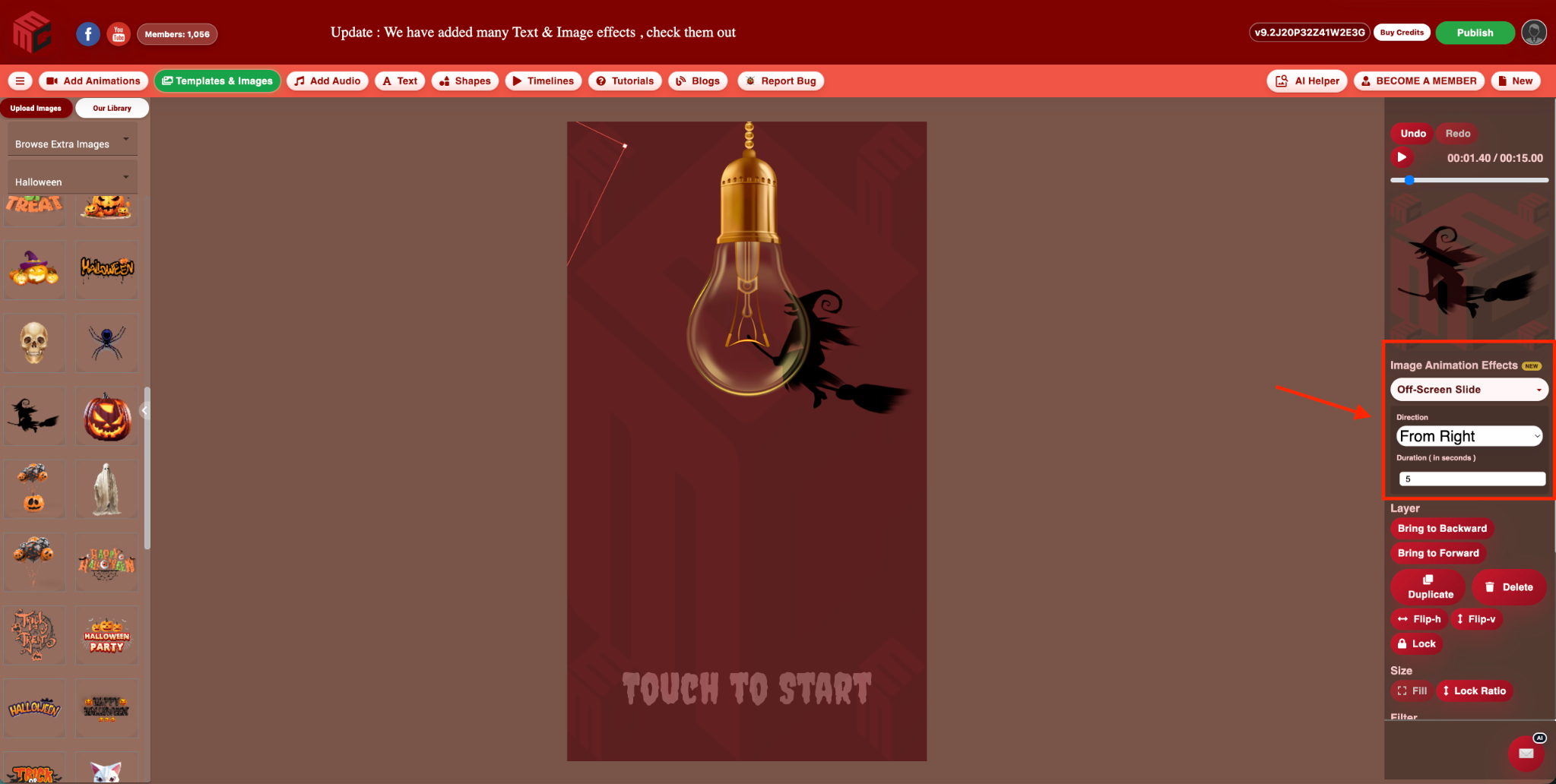
In the featured screenshot and video, the witch is rotated and set to enter from the right over five seconds. Because the movement respects the layer angle, the witch flies diagonally into the Halloween design instead of moving unnaturally in a straight horizontal line.
Broken Light Flicker for text
Broken Light Flicker creates the uneven rhythm of a damaged bulb, failing neon sign or unstable electrical light. It uses a carefully designed irregular sequence with short blackouts, dim moments, fast double-flickers and full-brightness pauses.
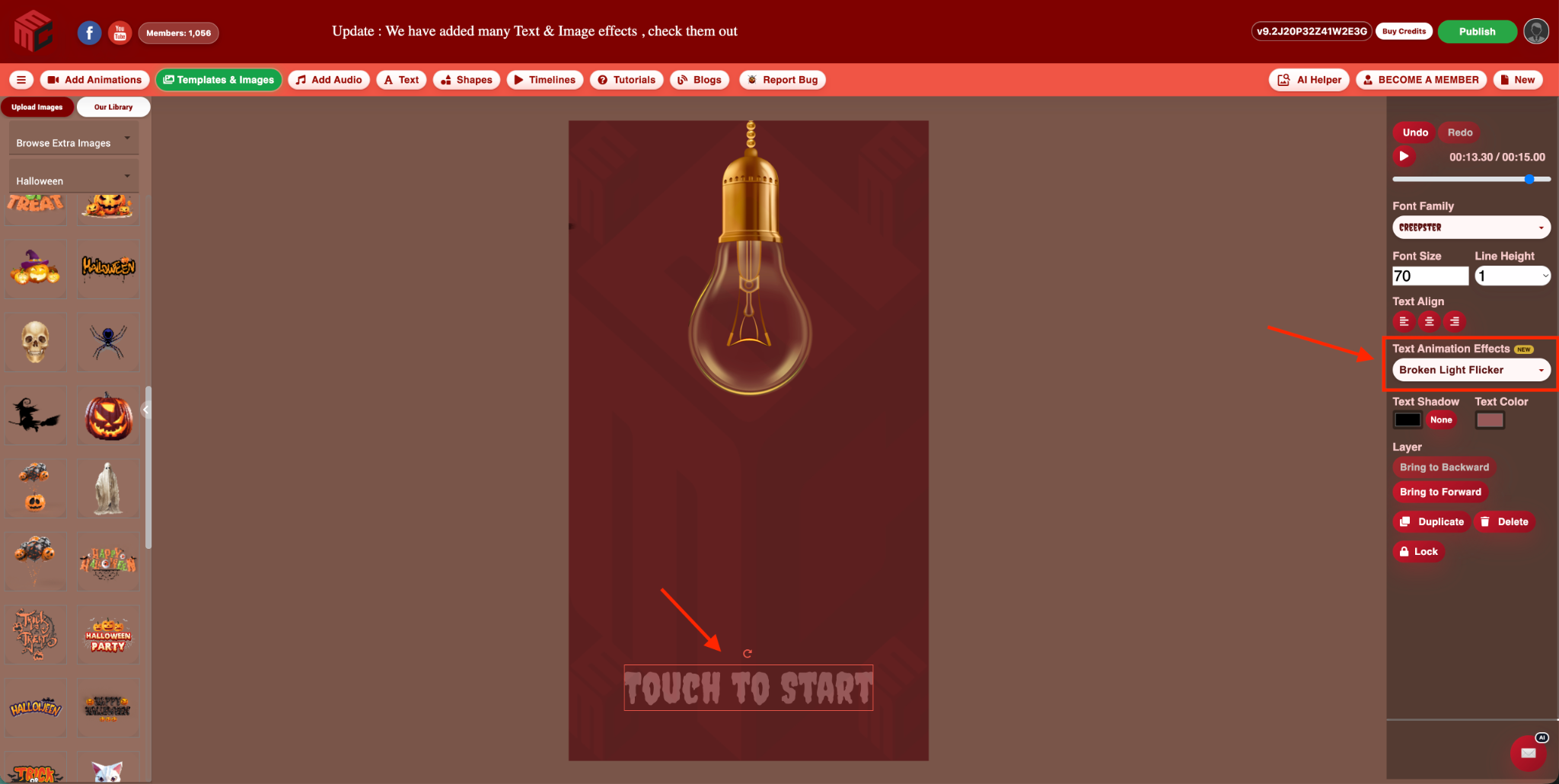
The effect is deterministic rather than randomly generated, which keeps the editor preview and published animation synchronized. It preserves the text font, size, alignment, color, outline, shadow and rotation.
Broken Light Flicker for images
The same effect is available for images. It works especially well with light bulbs, neon graphics, signs, Halloween artwork, warning icons and other graphics that should appear electrically unstable.
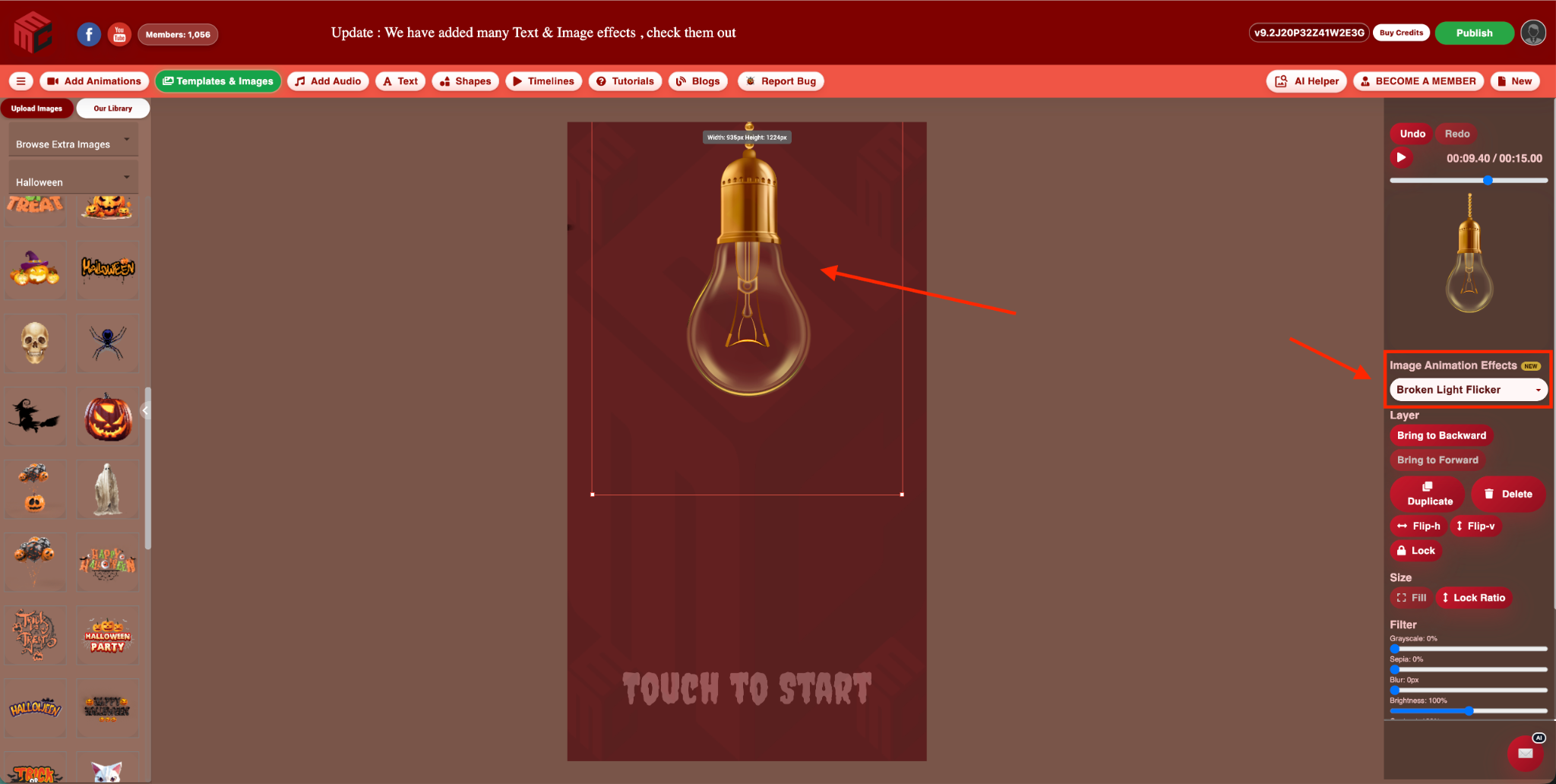
Transparent PNG areas remain transparent, and the effect is supported in the editor preview and published output.
Animation Duration now means actual visible travel time
Duration should describe how long an entrance travels from its starting point to its final saved position. A five-second Fly In or Off-Screen Slide should visibly move for five seconds—not remain hidden for most of that time and rush into view near the end.
The text Fly In timing was corrected so the complete text starts just beyond the nearest canvas edge, becomes visible almost immediately, and continues traveling for the selected duration. Image and text entrance effects also restart correctly when playback begins at 0.00 or loops back to the start.
Cleaner searchable effects menus
The growing effect collection needed a cleaner interface. Image Animation Effects now uses a searchable dropdown instead of a crowded grid of buttons. The selected effect remains visible at the top, and additional controls appear only when needed.
For example, choosing Off-Screen Slide reveals Direction and Duration. Choosing an effect without extra settings keeps the panel simple.
The Font Family, Text Animation and Image Animation menus were also updated to stay inside the visible browser window. The right settings panel can scroll independently, and the open menu automatically uses the available space above or below the selector. This makes every effect reachable at normal browser zoom on shorter laptop screens and older monitors.
Preview and published output stay aligned
Animation tools are useful only when the final result matches what the creator sees while editing. Recent work focused heavily on preview and publisher parity, including rotated movement, entrance timing, Timeline looping and transparent image handling.
The goal is simple: when an effect looks right in the MyMirrorClub editor, it should look right in the published animation too.
We are not stopping
MyMirrorClub will continue adding creative effects, improving editing tools and making the workflow easier for both experienced designers and first-time users. Every update is designed to help photo booth owners create professional touch-to-start screens, mirror booth animations, event graphics and branded motion designs faster.
MyMirrorClub is free to try. New accounts receive one free publishing credit after signup, with no credit card required to browse the library, customize designs or use the online editor.
FAQ: Do I need animation experience to use these effects?
No. Select a text or image layer, choose an effect, adjust Direction or Duration when available, and preview the result on the Timeline. The editor handles the animation movement and publishing process.
FAQ: Does a rotated image keep its angled movement after publishing?
Yes. Rotation-aware effects such as the corrected Off-Screen Slide calculate movement using the layer’s local rotated direction in published output.
FAQ: What does the Duration setting control?
For entrance effects with a Duration option, it controls the actual travel time from the starting edge or off-screen position to the layer’s saved final position.
FAQ: Can Broken Light Flicker be used on transparent PNG images?
Yes. The visible image flickers while transparent areas remain transparent.