Finding the correct layer should not become the hardest part of editing a photo booth template. The MyMirrorClub editor now makes crowded projects easier to understand by identifying text, shapes and images more clearly inside the Layers panel.
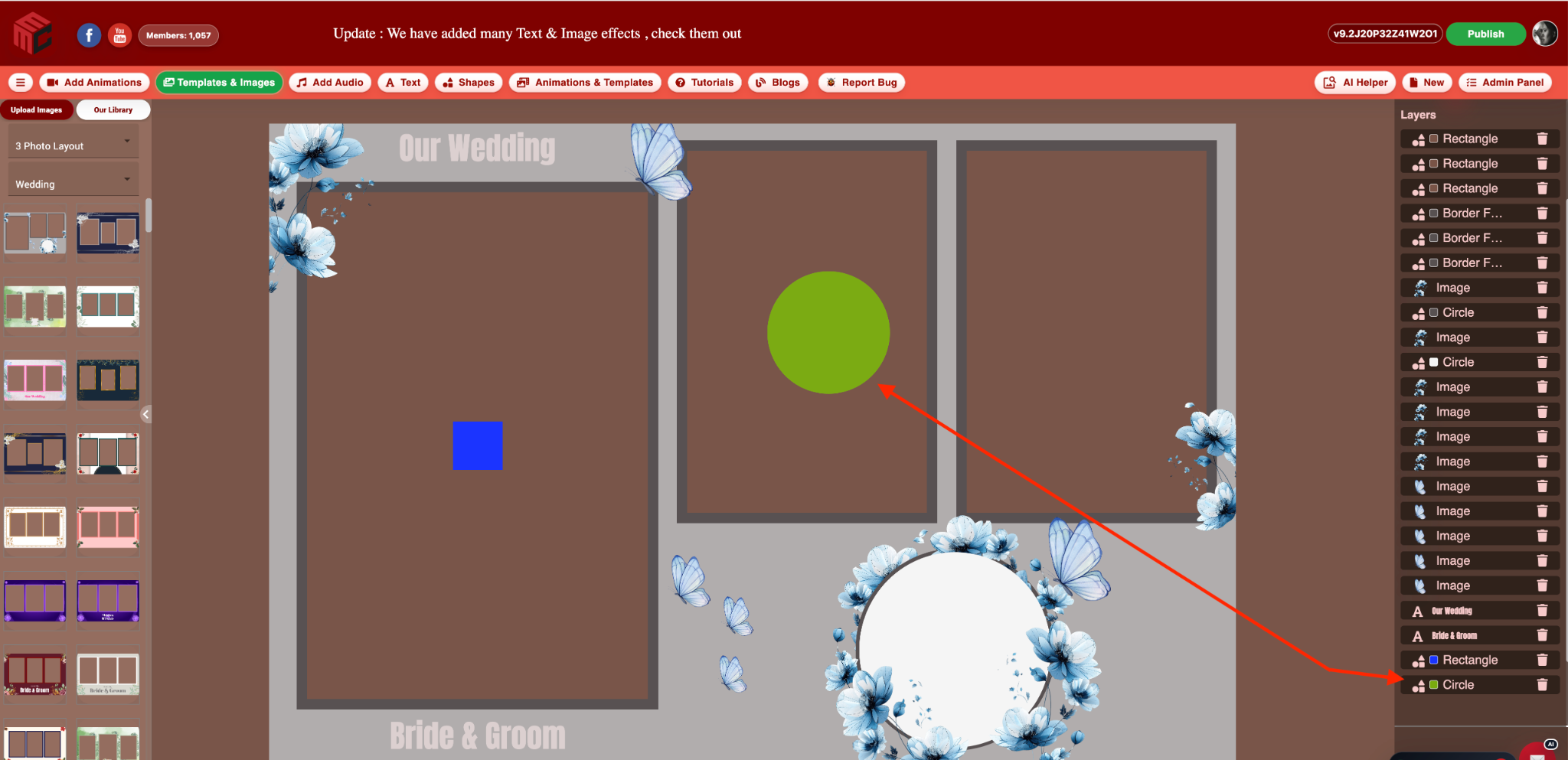
Instead of looking through a long list of generic labels, creators can see the actual text they typed, preview the saved font, recognize shape types and use color swatches to distinguish similar objects.
Open the MyMirrorClub Editor or continue below to see how the improved layer identification helps when templates contain many text, image and shape elements.
Why layer identification matters
A simple animation may contain only a few objects. A complete photo booth template can contain much more:
- Photo frames and border frames
- Decorative PNG graphics
- Event titles, names, dates and instructions
- Buttons such as Touch to Start
- Rectangles, circles and other shapes
- Several similar layers placed in different parts of the design
When every text row says Sample Text and every shape row says Shape, locating the correct object takes too long. Clear identification lets the creator spend more time designing and less time clicking through layers one by one.
Text layers now show the words you actually typed
When a text object is changed from Sample Text to Touch to Start, the Layers panel uses Touch to Start as the layer label. The name updates live while the text is being edited, without requiring another layer to be added or selected first.
This is especially useful when a design contains multiple text objects such as:
- Our Wedding
- Bride & Groom
- Touch to Start
- Event dates
- Sponsor names
- Hashtags and calls to action
Long or multi-line wording is kept on one clean layer row with truncation when necessary. Hover details can reveal the complete wording when the panel is narrow.
See the saved font directly in the Layers panel
The text label is not limited to a generic interface font. MyMirrorClub uses the text layer's saved font family in the Layers panel, including recorded bold or italic styling where available.
This gives creators another visual clue. Two layers may contain similar words, but the script font used for Bride & Groom looks different from the strong display font used for Our Wedding. That difference is now visible before opening the text settings.
Shapes have real names instead of a generic label
Shape rows now identify the saved object type. Depending on the design, the layer can be labeled Rectangle, Circle, Heart, Star, Border Frame or another supported shape.
This is much more useful than a repeated Shape label, particularly when several frames and decorative objects are stacked in the same part of the canvas.
Color swatches make similar shapes easier to separate
Each shape row includes a compact color swatch based on its saved fill or border color. In the example above, a blue Rectangle and a green Circle can be recognized immediately in both the canvas and the Layers panel.
Border Frames use their border color because the center is intentionally hollow. Transparent colors use a visible transparency indicator rather than appearing as an empty or missing swatch.
This helps with practical tasks such as:
- Finding the correct photo frame border
- Selecting a colored background panel
- Distinguishing duplicate circles or rectangles
- Matching shapes to event brand colors
- Locating a border frame hidden beneath decorations
Images remain visually identifiable
Image layers already benefit from small visual thumbnails, so that useful behavior remains intact. Flowers, butterflies, balloons and other graphics can still be recognized visually rather than being reduced to file names alone.
The improved text and shape rows bring the rest of the panel closer to the same level of identification.
A stronger selected-layer highlight
When a layer is selected, the row receives a clearer red highlight and left marker. This makes it easier to connect the object selected on the canvas with the correct position in a long layer stack.
The highlight is particularly helpful when the panel contains many similar text rows, repeated decorations or multiple frame shapes.
Designed to work with existing editor tools
The improved Layers panel complements other MyMirrorClub editing features:
- Smart alignment guides and multiple-layer selection
- Border frames and layer keyboard shortcuts
- Improved Undo, Redo and animation effects
- Batch editing for compatible selected layers
- Image color filters, tint controls and animation effects
A creator can identify the correct layers, select one or several objects, align them with smart guides and continue editing without guessing which row belongs to which object.
A display improvement that does not change the project
The layer identification update changes how existing project information is displayed in the editor panel. It does not add hidden naming fields or rewrite saved project content.
It does not change:
- Layer position, size or rotation
- Layer order or delete behavior
- Undo and Redo history
- Animation timing or effects
- Image filters
- Published template or animation output
The saved text, font, shape type and color were already part of the project. The Layers panel now presents that information in a more useful way.
How to use the improved Layers panel
- Open an existing project or create a new design in the MyMirrorClub Editor.
- Add or select a text layer.
- Change the wording and font, then watch the layer row refresh live.
- Add a Rectangle, Circle, Border Frame or another shape.
- Change the shape color and use the new swatch to identify it.
- Select objects on the canvas or in the panel and use the stronger highlight to follow the active layer.
FAQ: Does the text layer name update while I type?
Yes. The current text wording and font appearance refresh live in the Layers panel without waiting for another layer action.
FAQ: Does changing a font rename the project layer?
The layer continues to use the actual text wording as its label. The saved font is used as a visual preview so the row is easier to recognize.
FAQ: Which shapes are identified?
The panel uses meaningful names for supported shapes, including Rectangle, Circle, Heart, Star and Border Frame, together with the other available icon shapes.
FAQ: Are shape colors saved differently now?
No. The project already stores its shape color. The panel simply shows a small swatch using that existing saved fill or border value.
FAQ: Does this affect published animations or templates?
No. This is an editor layer-panel display improvement. It does not change publisher output, animation behavior or saved object geometry.
Build complex templates without losing track of your layers
Use live text names, font previews, shape labels, color swatches and selected-layer highlighting to navigate your next design more quickly.
MyMirrorClub is FREE TO TRY. New accounts receive one free publishing credit on signup.